
Platforms
Posting on LinkedIn: The Fold, Documents, Image Carousels and Scheduling
November 4, 2026 · 7 min read
LinkedIn rewards a different kind of post than the other networks: more text, a hard fold in the feed, and formats like documents that don't exist elsewhere. This guide is about writing for the fold, choosing the right media type, and the handful of rules that make a scheduled LinkedIn post fail.
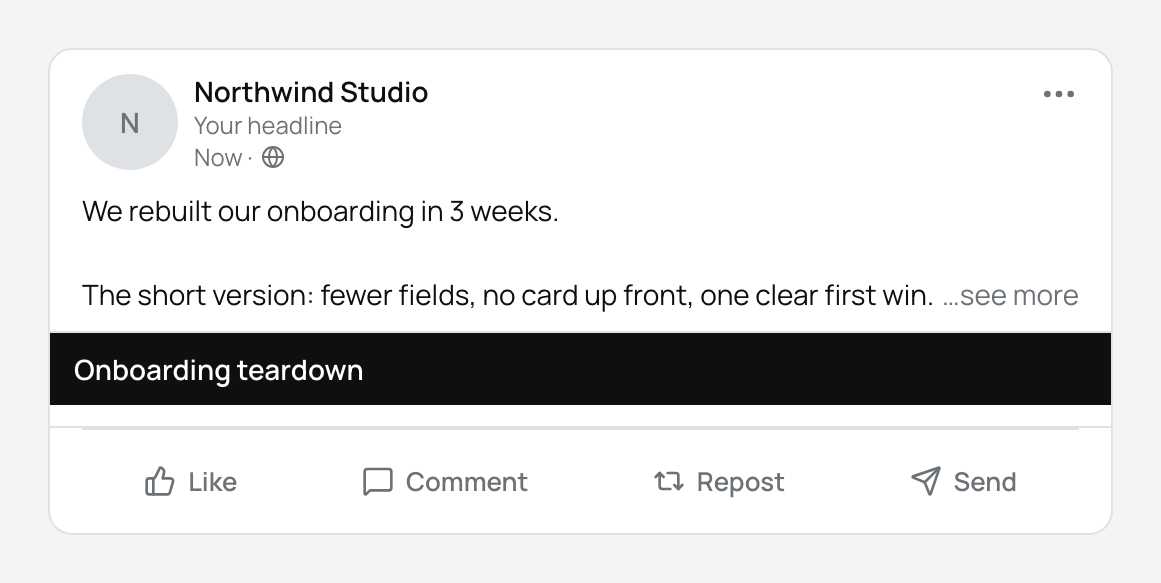
Write for the fold
LinkedIn shows roughly the first 210 characters of a post in the feed, then cuts the text and adds “see more”. Most people never tap it. Everything you want read has to earn that tap in those first two lines.
PostGP's preview applies the same cut, so you can see what the feed will show. If the visible part reads like a throat-clearing intro, rewrite it before you schedule.
- Put the claim, result or question in the first line, not the setup.
- Use a line break after the hook. It reads cleaner than a wall of text.
- Save links for the end or the first comment so the opening stays readable.
The full post can be up to 3,000 characters. That is plenty for a story, but only the part above the fold decides whether it gets read.
Pick one media type
A LinkedIn post can carry images, one video or one document, but not a mix. If your draft has a PDF and a photo, PostGP will flag it before it is scheduled.
| Format | Limit | File size |
|---|---|---|
| Images | Up to 20 per post | 36 MB each |
| Video | 1 per post | 200 MB |
| Document | 1 per post: PDF, PowerPoint or Word | 100 MB |
| Text only | Allowed | — |
Publish a document or slide deck
Documents appear as a swipeable carousel in the feed. They suit checklists, teardowns and slide decks, and they keep readers on the post for longer than a link out.
- Export your deck as a PDF, or use a PowerPoint or Word file.
- Attach it to the post. Only one document is allowed.
- Give the document a title. LinkedIn displays it above the document and PostGP will not schedule a document without one.
- Write a short intro above it that sets up what the reader will find inside.
Choose who sees the post
Visibility is set per post. Public makes it visible to anyone on or off LinkedIn. Connections limits it to your direct network. For marketing and thought leadership you almost always want Public.
Special characters in text
LinkedIn's publishing format reserves characters such as @, #, parentheses, brackets, asterisks and underscores. PostGP escapes them for you so your text appears exactly as you typed it, rather than being swallowed as formatting.
That means a post can contain a literal “(draft)” or “C#” without breaking. Hashtags written as plain text still appear in your post.
Common mistakes
- Mixing a document with images or a video in the same post.
- Scheduling a document without a title.
- A post over 3,000 characters. The counter in the editor shows how far over you are.
- Posting an empty post with no text and no media.
Frequently asked questions
- Can I schedule posts to a LinkedIn company Page?
- Not at the moment. PostGP publishes from your personal profile.
- Where should I put a link?
- Links in the post body can reduce reach on LinkedIn, so many people put them in the first comment. PostGP publishes the post itself; add the comment after it goes live.
- What file types can I use for a carousel?
- Upload a PDF, PowerPoint or Word file as a document. Alternatively, attach up to 20 images in one post.
Keep reading
Schedule your posts with PostGP
Plan Instagram, X, LinkedIn and Threads posts in one calendar.
Get started