
Platforms
How to Schedule LinkedIn Posts: Text, Images, Video and PDF Documents
November 6, 2026 · 7 min read
A LinkedIn post that goes out when your audience is online beats one you remember to publish at 4 pm. This guide shows how to schedule one in PostGP, from writing the opening lines to attaching a PDF document, and what to check so the post publishes without you.
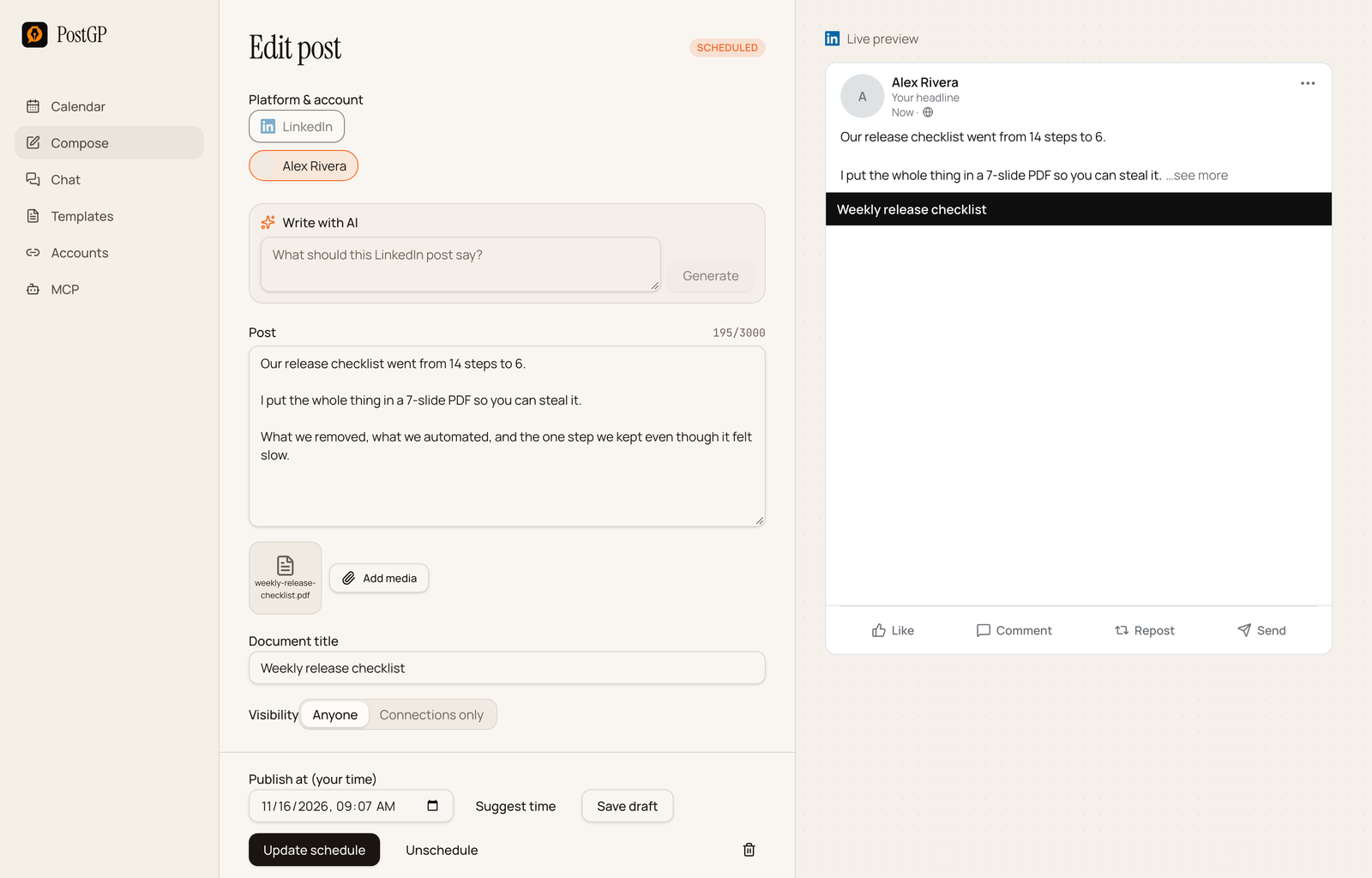
What you can schedule
PostGP publishes to your personal LinkedIn profile. A post can be text only, or text with one kind of media.
| Post type | What to attach | Limit |
|---|---|---|
| Text | Nothing | 3,000 characters |
| Images | Up to 20 images | 36 MB each |
| Video | One video | 200 MB |
| Document | One PDF, PowerPoint or Word file | 100 MB, and a title is required |
A post cannot mix images, video and a document. PostGP flags the combination before you can schedule.
Schedule a LinkedIn post in six steps
- Connect your LinkedIn account once from the Accounts page, using LinkedIn's own sign-in.
- Open Compose and choose LinkedIn.
- Write the post. The counter shows characters out of 3,000.
- Attach media if you want it, and set Visibility.
- Choose Publish at, or press Suggest time.
- Press Schedule. The post appears on your calendar and publishes at that time.
Write for the fold
LinkedIn shows only the first lines of a post, roughly 210 characters, before “see more”. PostGP's preview applies the same cut, so you can judge your opening exactly as a reader will see it.
Before you schedule, read only the visible part. If it works as a standalone line, the post will get opened. If it is an introduction, rewrite it.
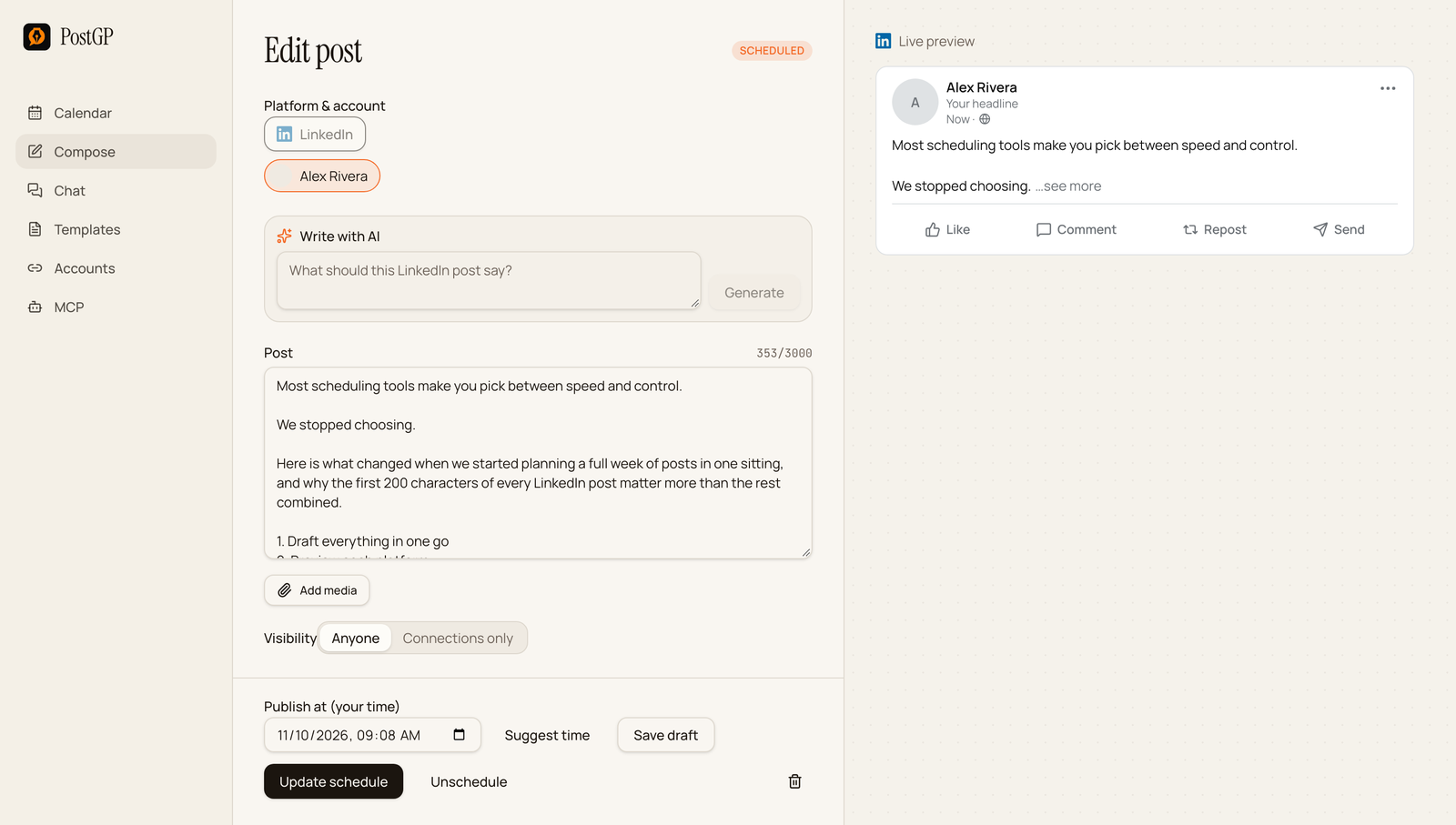
- Lead with the result, claim or question.
- Put a line break after the hook.
- Keep links toward the end so the opening reads cleanly.
Schedule a PDF document or slide carousel
Documents show in the feed as a swipeable carousel, which suits checklists, teardowns and slide decks. They are also the most common reason for a LinkedIn post to be rejected by the editor, because of the title rule.
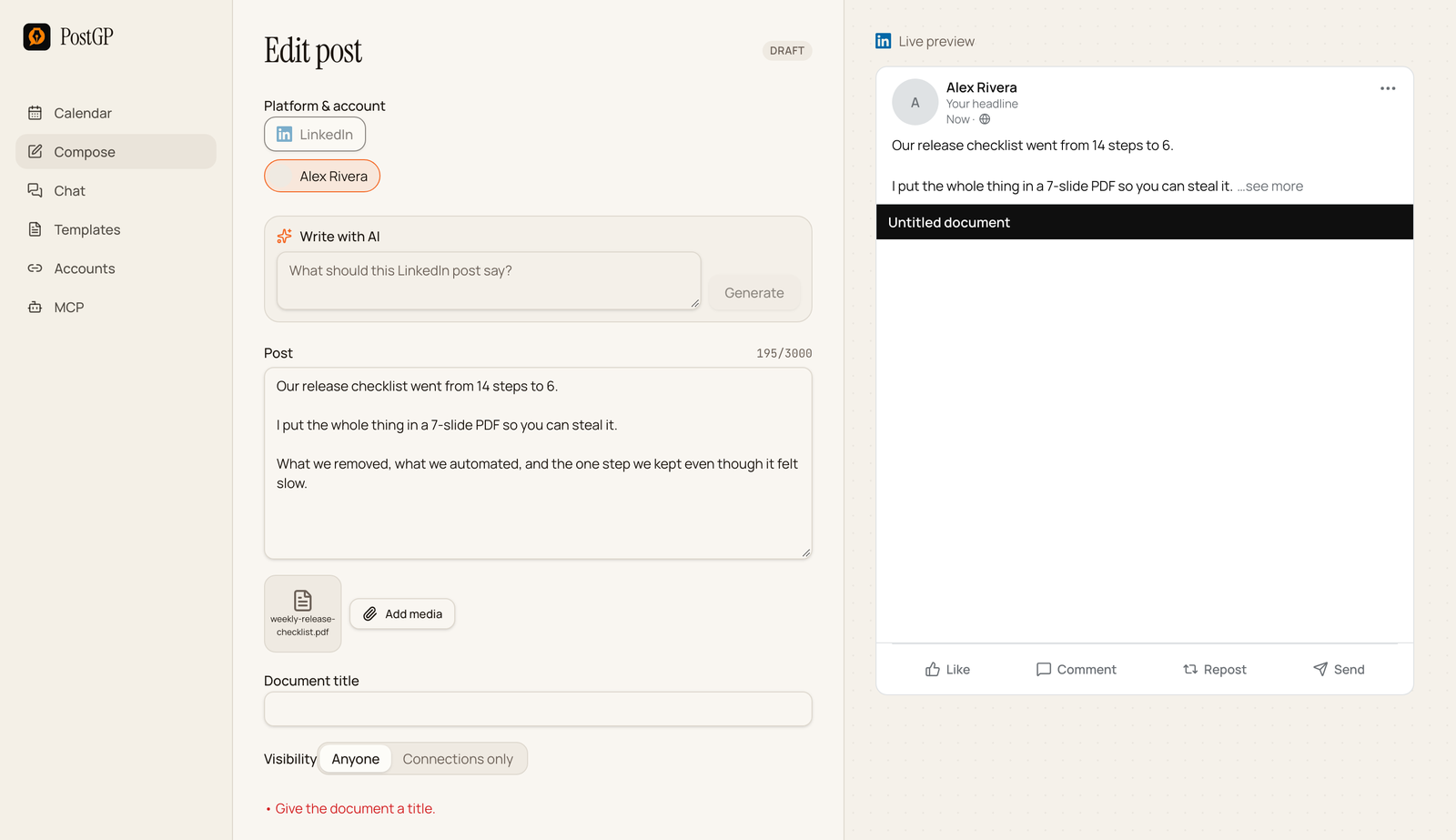
- Export your slides as a PDF. PowerPoint and Word files are accepted too.
- Press Add media and choose the file. Only one document is allowed per post.
- Fill in Document title. This is the label LinkedIn shows with the document, and PostGP will not schedule a document without it.
- Write the text above it. Say what is inside and why it is worth swiping.
Choose who can see it
Set Visibility before you schedule. Anyone makes the post public, and Connections only limits it to your first-degree network. For anything meant to reach beyond your current contacts, choose Anyone.
Pick a time that works
Press Suggest time and PostGP offers a slot that does not collide with your other scheduled posts. It keeps at least four hours between posts from one user, so a LinkedIn post and an X post cannot be placed minutes apart, and the time must be at least 30 seconds ahead.
For which days and hours tend to suit different audiences, see the guide on the best time to post. Use it as a starting point and adjust to when your own audience responds.
Review, edit or cancel before it goes out
A scheduled post stays editable until it publishes. Open it from the calendar to change the text, swap the file, or move the time, then press Update schedule. Unschedule moves it back to drafts, and the bin icon deletes it.
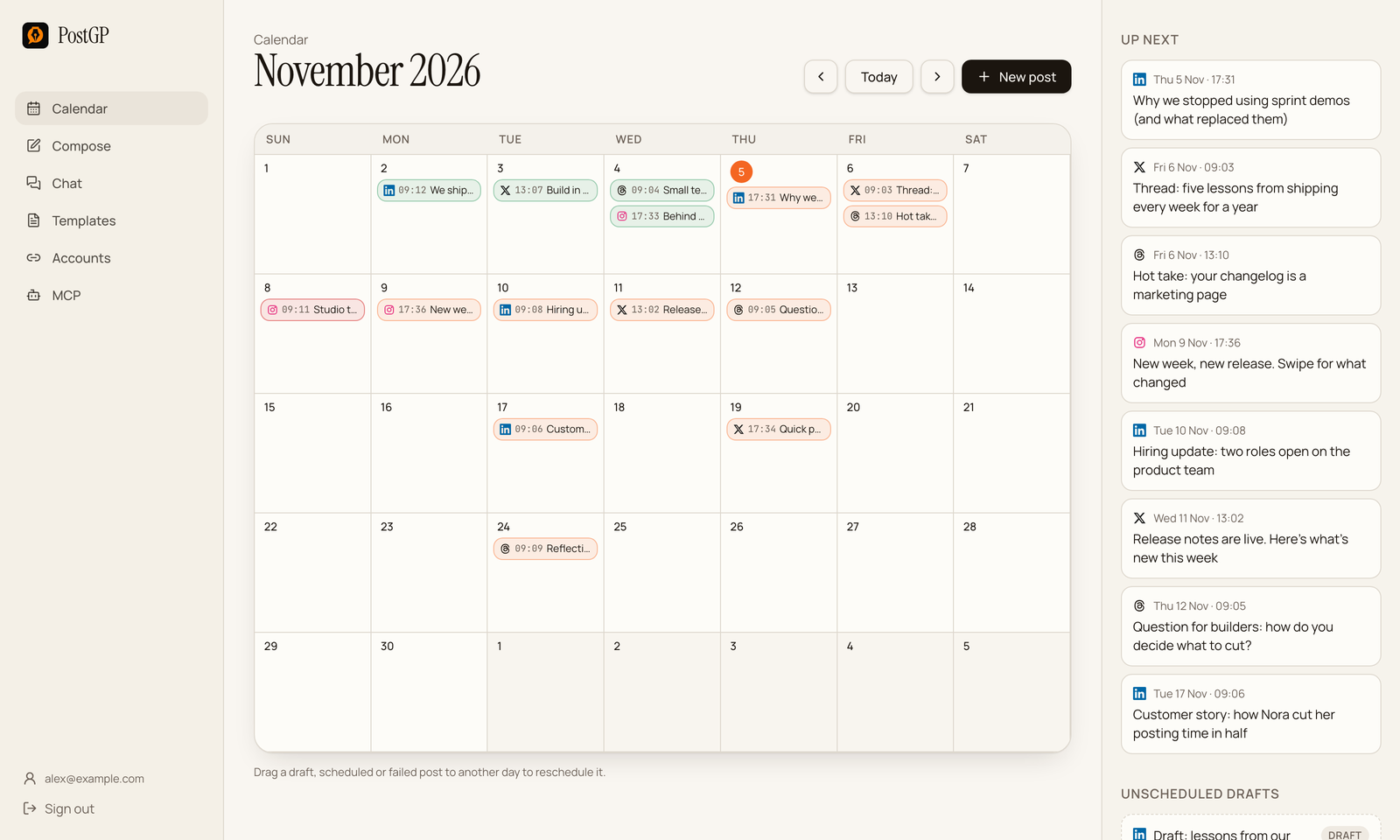
If a LinkedIn post fails
Open the post to see why it failed. The publishing log lists every attempt with its outcome.
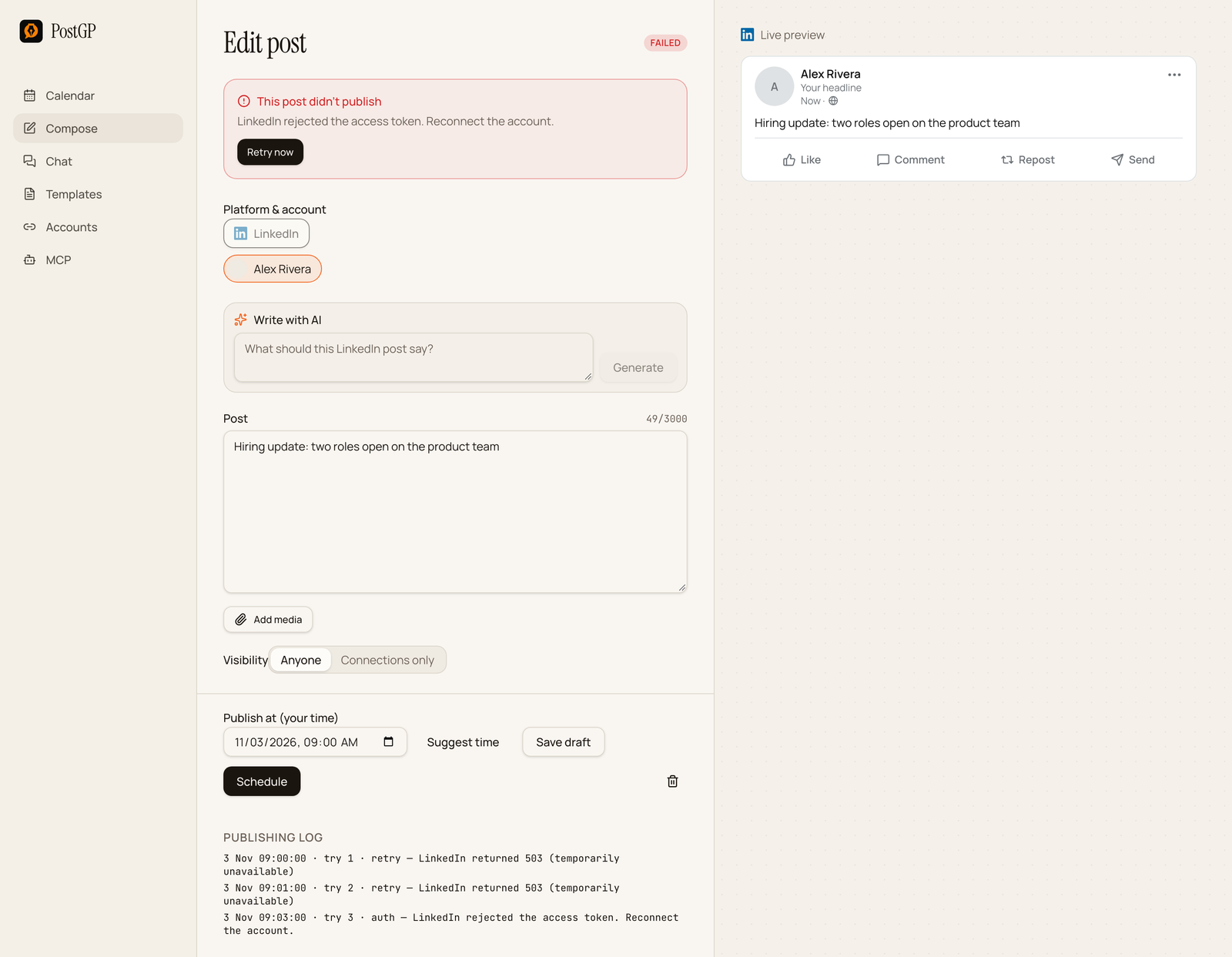
| What the log says | What to do |
|---|---|
| LinkedIn rejected the access token | Reconnect the account on the Accounts page, then press Retry now. |
| Temporary error (for example, service unavailable) | PostGP retries automatically. If it keeps failing, retry later. |
| Give the document a title | Add a Document title and schedule again. |
| Mixed media | Keep to one type: images, one video, or one document. |
Schedule from Claude or another AI assistant
If you draft in an assistant that supports MCP, connect it to the PostGP server and ask it to schedule the post. It applies the same checks as the editor.
Turn these notes into a LinkedIn post with a strong first line, and schedule it for Tuesday at 9am.
Frequently asked questions
- Can I schedule posts to a LinkedIn company Page?
- Not at the moment. PostGP publishes from your personal profile.
- How many characters can a LinkedIn post have?
- 3,000. Only roughly the first 210 show before see more, so the opening matters most.
- Can I schedule a PDF or slide carousel?
- Yes. Attach one PDF, PowerPoint or Word file up to 100 MB and give it a document title.
- Can I attach images and a document to the same post?
- No. A post can carry images, one video or one document, but not a mix.
- Can I edit a LinkedIn post after scheduling it?
- Yes, until it publishes. Open it from the calendar, change it and press Update schedule.
Keep reading
- PlatformsPosting on LinkedIn: The Fold, Documents, Image Carousels and Scheduling
- PlatformsSocial Media Character Limits for X, LinkedIn, Instagram and Threads (2026)
- StrategyBest Time to Post on X, LinkedIn, Instagram and Threads (and How to Find Yours)
- StrategyHow to Post to X, LinkedIn, Instagram and Threads Without Copy-Pasting
Schedule your posts with PostGP
Plan Instagram, X, LinkedIn and Threads posts in one calendar.
Get started