
Platforms
How to Schedule Posts on X (Twitter): Step-by-Step, Including Threads
November 6, 2026 · 6 min read
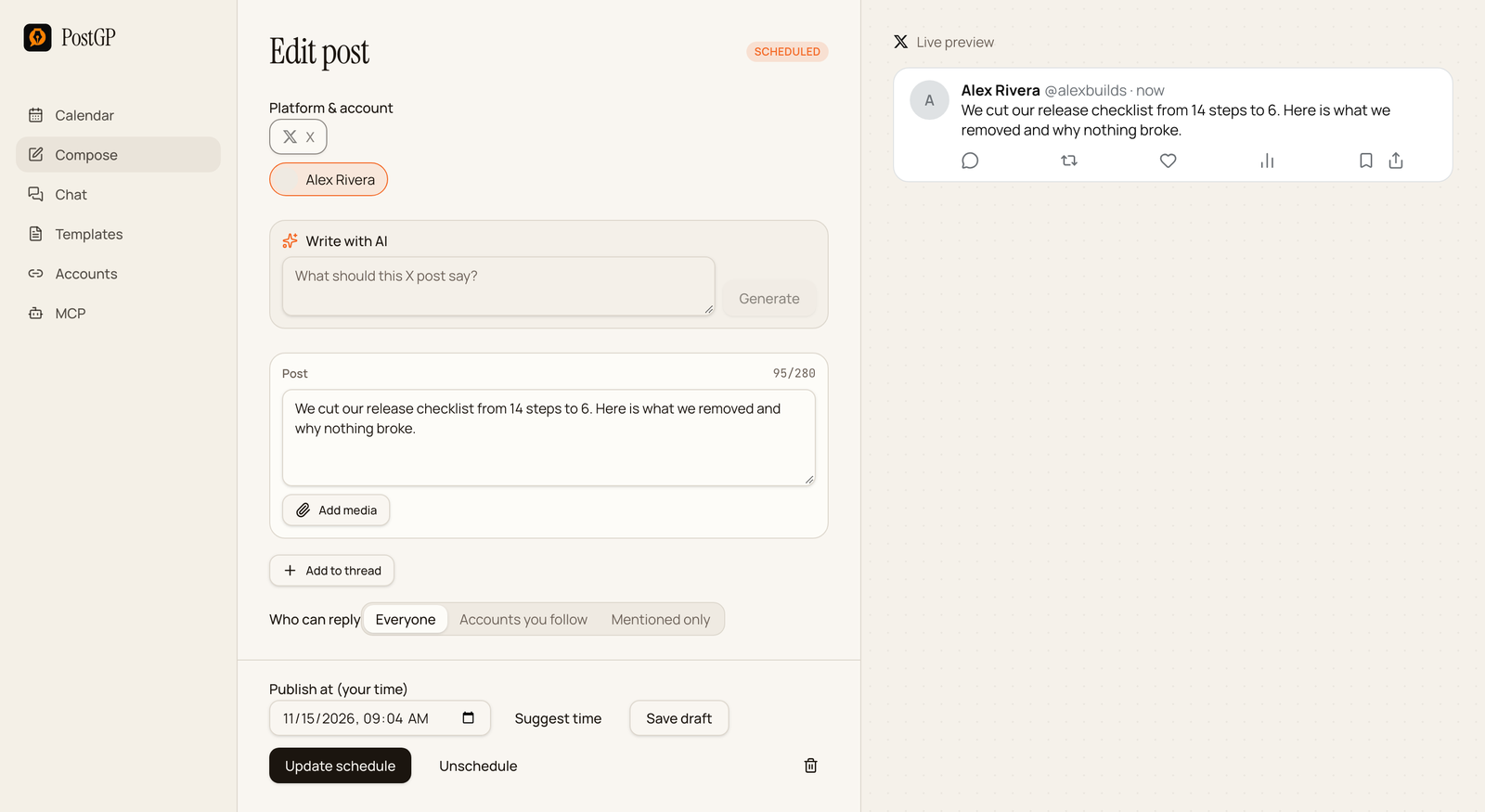
Scheduling on X means writing the post now and letting it publish at the right time, without opening the app. This guide walks through the whole flow in PostGP, from connecting your account to editing a post that is already scheduled, and covers the small X-specific rules that make scheduled posts fail.
Before you start
You need three things:
- A PostGP account.
- An X account you can sign in to. You connect it once with X's own sign-in, and PostGP never sees your password.
- A post, or an idea for one. You can write it yourself or have the AI draft it.
Not connected yet? The guide on connecting social accounts takes about a minute and covers all four platforms.
Schedule a single post in five steps
- Open Compose and choose X. If you have more than one X account connected, pick the one to post from.
- Write the post. The counter in the top right of the box shows your weighted length out of 280, and the preview on the right shows how it will look.
- Optionally add media, and choose who can reply: Everyone, Accounts you follow, or Mentioned only.
- Set Publish at, or press Suggest time to let PostGP pick a slot that fits your calendar.
- Press Schedule. The post appears on your calendar and publishes automatically at that time.
Know how X counts the 280 characters
X does not count one character as one. Every link counts as a flat 23, and emoji and most Chinese, Japanese and Korean characters count as 2. PostGP uses the same rule, so the counter in the editor is the number X will use.
If the count turns red, the post is over the limit and the Schedule button stays disabled. Shorten it, or split it into a thread.
| Example | Weighted length |
|---|---|
| A 60-letter sentence | 60 |
| The same sentence plus a 90-character link | 60 + 23 = 83 |
| The same sentence plus three emoji | 60 + 6 = 66 |
Schedule a thread
A thread is a chain of posts published together, one replying to the previous one. In the editor, press Add to thread to add the next post. A thread can have up to 25 posts, and each one has its own 280 counter and its own media.
The whole thread is scheduled as one item with one publish time, so the posts go out in order without you having to time each one.
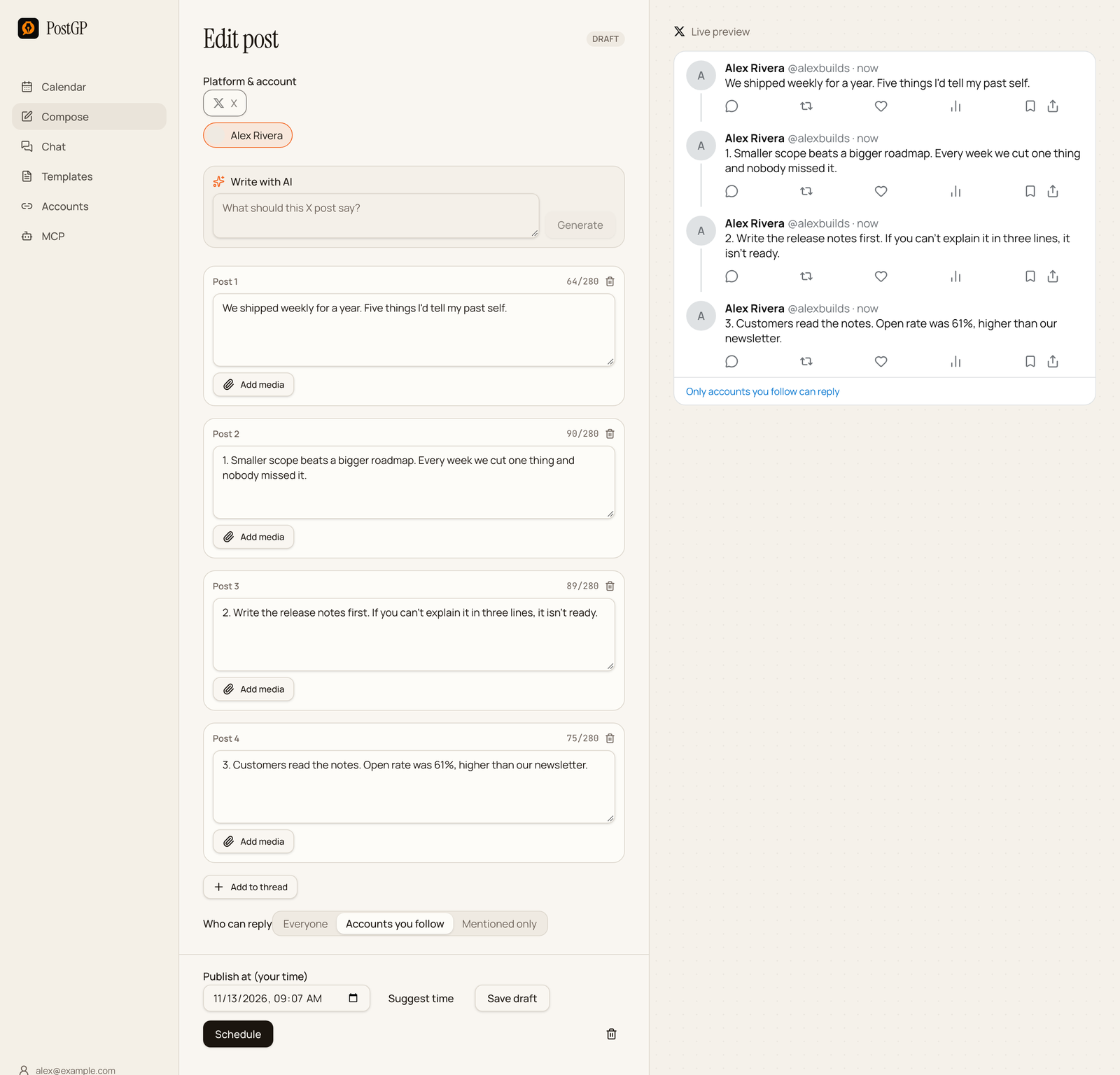
- Make the first post work on its own. It is the only one most people see before deciding to read on.
- Give each post a single point. If a post needs two ideas, it is two posts.
- Finish with a post that tells the reader what to do next: follow, reply, or read the link.
A video or GIF has to be the only media in its post, so put screen recordings and screenshots in separate posts.
Choose a time that fits
Press Suggest time and PostGP proposes a slot based on the posts already on your calendar. It aims for common morning, midday and evening times, with a small random offset so posts don't all land on the exact hour.
PostGP also keeps at least four hours between posts from the same user, and the time must be at least 30 seconds in the future. If a time is too close to another post, the editor tells you which post it clashes with and keeps Schedule disabled until you move it.
Edit, reschedule or cancel
A scheduled post is not locked. Open it from the calendar and you can change the text, the media, or the time.
| To do this | Press |
|---|---|
| Change the time or text and keep it scheduled | Update schedule |
| Keep it but stop it from publishing | Unschedule (moves it back to drafts) |
| Save work in progress with no time | Save draft |
| Remove it entirely | The bin icon |
Plan the week from the calendar
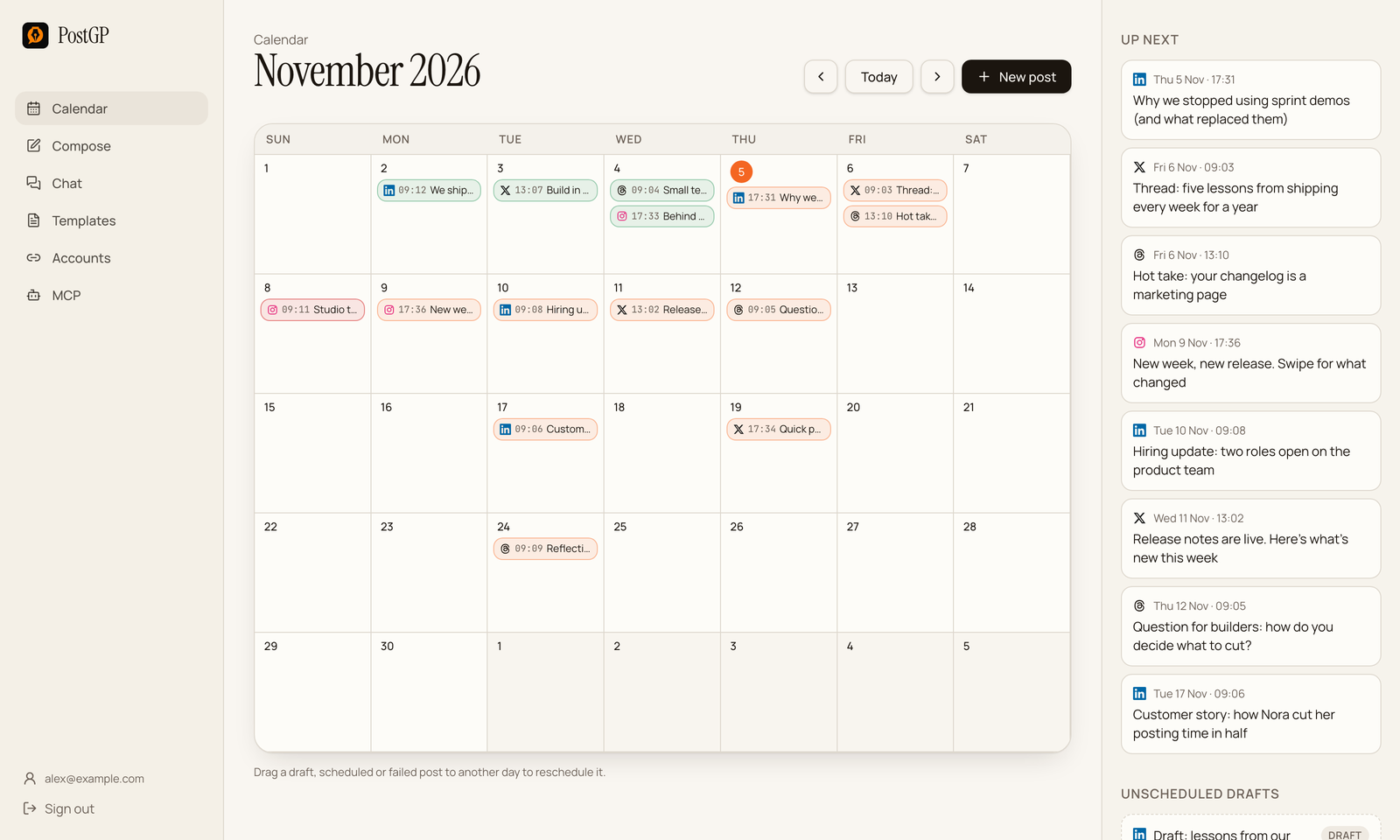
Scheduled posts appear on the calendar next to your LinkedIn, Instagram and Threads posts. Open it before you add a new post to see where the gaps are and which days are already busy. To move a post, drag it to another day, or open it and pick a new time. Published posts stay where they are.
Schedule from an AI assistant instead
If you already draft in Claude or another assistant that supports MCP, you can skip the editor. Connect it to the PostGP server and ask it to schedule the post. It uses the same checks, so an over-length post is rejected with the same message.
Write a short post about our new pricing page for X and schedule it for tomorrow at 9am.
If a scheduled post fails
Most X failures come from a small set of causes. Open the post to see the reason and the publishing log, then fix the cause and retry.
| What you see | What it means | What to do |
|---|---|---|
| Account needs reconnecting | X no longer accepts the saved access. | Reconnect the account on the Accounts page, then retry. |
| Temporary error | X was briefly unavailable or rate limited. | PostGP retries automatically. Check the log if it keeps failing. |
| Post over the limit | Weighted length is above 280. | Shorten it or split it into a thread. |
| Video rejected | A video over 2:20 needs X Premium on the posting account. | Trim the video or post from a Premium account. |
Frequently asked questions
- Can I schedule a thread, not just one post?
- Yes. Add posts with Add to thread, up to 25. The whole thread has one publish time and goes out in order.
- Can I edit a post after scheduling it?
- Yes. Open it from the calendar, change it, and press Update schedule. You can also Unschedule it to turn it back into a draft.
- Why does X count my post as longer than it looks?
- Links count as 23 characters and emoji count as 2. The counter in PostGP uses the same rule.
- Can I control who replies to a scheduled post?
- Yes. Choose Everyone, Accounts you follow, or Mentioned only before you schedule.
Keep reading
- PlatformsPosting on X: Character Counting, Threads, Media Limits and Scheduling
- PlatformsSocial Media Character Limits for X, LinkedIn, Instagram and Threads (2026)
- StrategyBest Time to Post on X, LinkedIn, Instagram and Threads (and How to Find Yours)
- Using PostGPScheduled Post Failed or Not Publishing? How to Diagnose and Fix It
Schedule your posts with PostGP
Plan Instagram, X, LinkedIn and Threads posts in one calendar.
Get started