
AI assistants
Prompts for Scheduling Social Posts with Claude, Codex or Gemini (Copy and Paste)
November 5, 2026 · 6 min read
Once your AI assistant is connected to PostGP, the quality of what you get depends on how you ask. This guide is a set of prompts you can paste and adapt, grouped by what you want to do, plus the habits that make an assistant schedule the right post at the right time.
Before you start
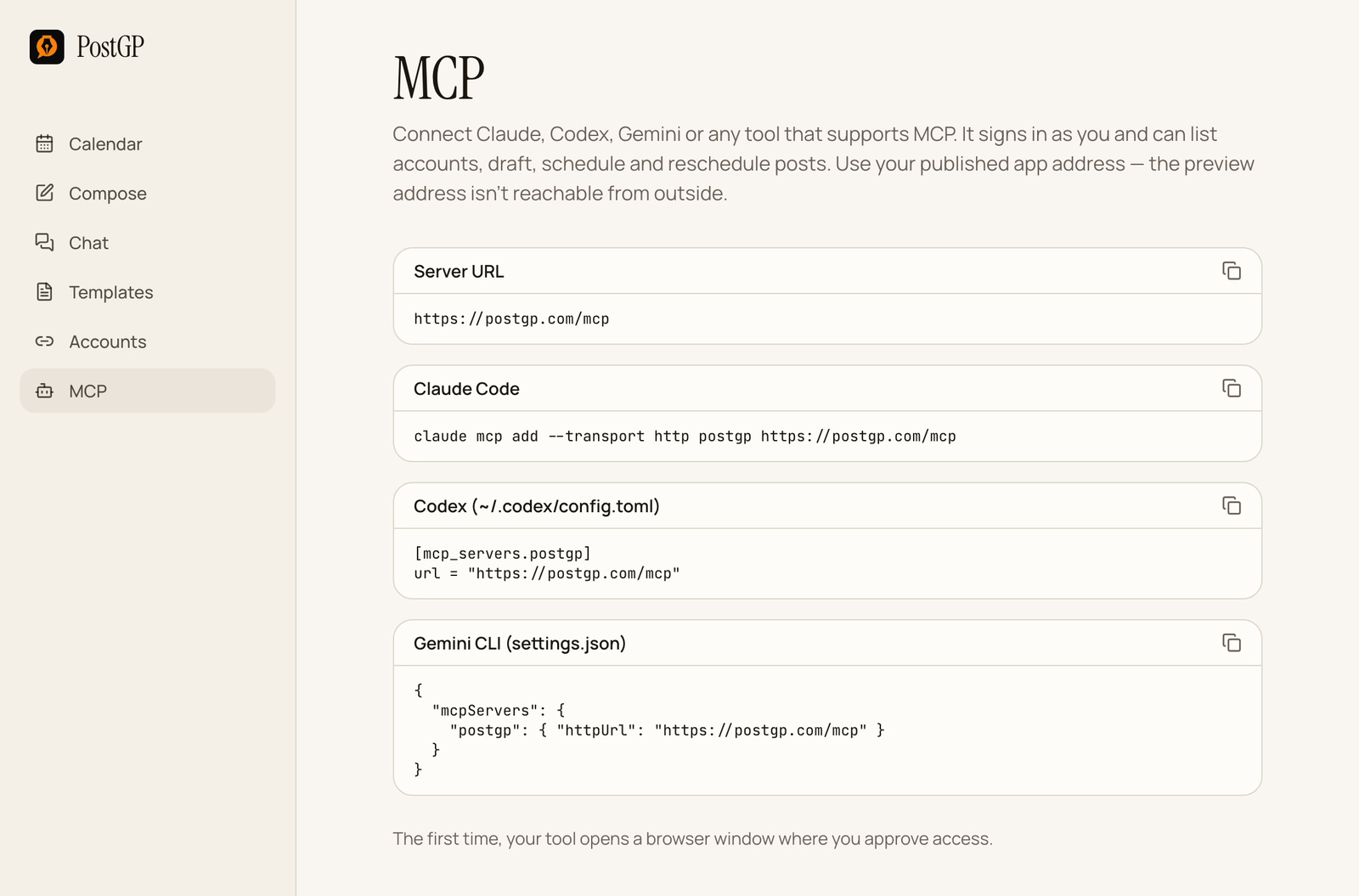
Connect your assistant first. The MCP page in PostGP lists the server URL and the commands for Claude Code, Codex and Gemini CLI, and the full setup is in the AI assistant guide. The first time you use it, your assistant opens a browser window where you approve access.
The assistant acts as you. It can list your accounts, create drafts and scheduled posts, upload media from a URL, list and inspect posts, reschedule, unschedule, retry failed posts and delete posts. It cannot bypass the platform limits or the four-hour spacing rule.
The ingredients of a good prompt
Every scheduling prompt works better with the same five details:
- Platform and account: which network, and which account if you have several.
- The content or a clear brief: what the post should say.
- A specific date and time with a time zone, such as Tuesday 9:00 am London time.
- Draft or schedule: say whether it should wait for your review.
- Media: a public URL the assistant can upload from, within the size limit.
Prompts to schedule posts
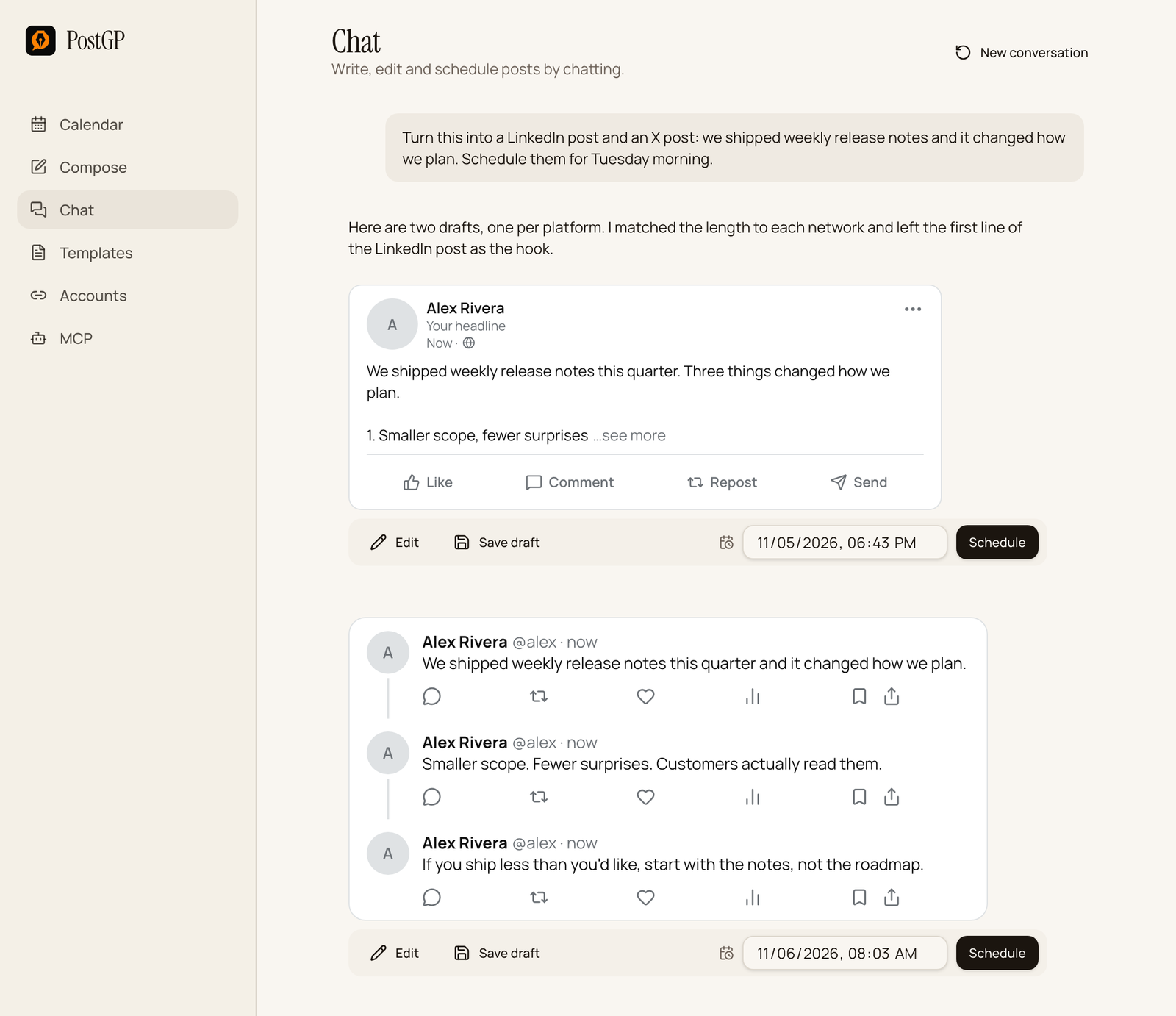
Using PostGP, schedule this LinkedIn post for next Tuesday at 9:00 am Europe/London on my main account:

"We shipped weekly release notes this quarter. Three things changed how we plan..."

Show me the post and the time before you schedule it.
Turn this announcement into an X thread of up to 4 posts, a LinkedIn post, and a Threads post. Save all three as drafts in PostGP and tell me the character count for each.
List my PostGP accounts. Then draft five posts for next week, one per weekday, rotating X, LinkedIn and Threads, around the theme "lessons from shipping weekly". Schedule them at around 9:00 each morning in Europe/London, and keep at least four hours between any two.
Prompts to manage what you have
List my PostGP posts for the next 7 days, grouped by day. Flag any day with more than one post and any post that is still a draft.
Move my scheduled X post about release notes to Thursday at 1:00 pm, keeping the same text.
Unschedule the Instagram post for Monday so it goes back to drafts. Do not delete it.
Find my failed posts in PostGP, tell me why each failed, and retry only the ones that failed for a temporary reason.
Habits that avoid mistakes
- Always include a time zone. Without it the assistant has to guess.
- Ask to see the post and the time before scheduling anything important.
- Say draft when you are unsure. A draft can be scheduled later with one click.
- Use a public image URL for media and keep files within each platform's limits.
- Check the PostGP calendar afterwards. It is the source of truth for what will publish.
Keep control of what gets published
The assistant signs in as you and is limited to your own account data. Deleting is the one action to confirm deliberately: ask the assistant to list what it plans to delete first. You can revoke access at any time, and the safety guide explains how.
Frequently asked questions
- Which assistants work with PostGP?
- Any tool that supports remote MCP servers, including Claude Code, Codex, Gemini CLI, Cursor and Claude.
- Why did my assistant refuse to schedule two posts at the same time?
- PostGP requires at least four hours between your posts. Ask for different times or combine the content into a thread or carousel.
- Can the assistant publish immediately?
- Posts are scheduled for a future time, at least 30 seconds ahead, and publish through PostGP's queue.
Keep reading
Schedule your posts with PostGP
Plan Instagram, X, LinkedIn and Threads posts in one calendar.
Get started