
Policy
Is It Safe to Connect Your Social Accounts to a Scheduler? What PostGP Can and Cannot Do
November 5, 2026 · 6 min read
Giving any tool permission to post for you is a real decision. This guide explains what happens when you connect an account, which permissions PostGP requests, how your access is stored and how to take it back. It also lists questions worth asking any scheduling tool.
How connecting works
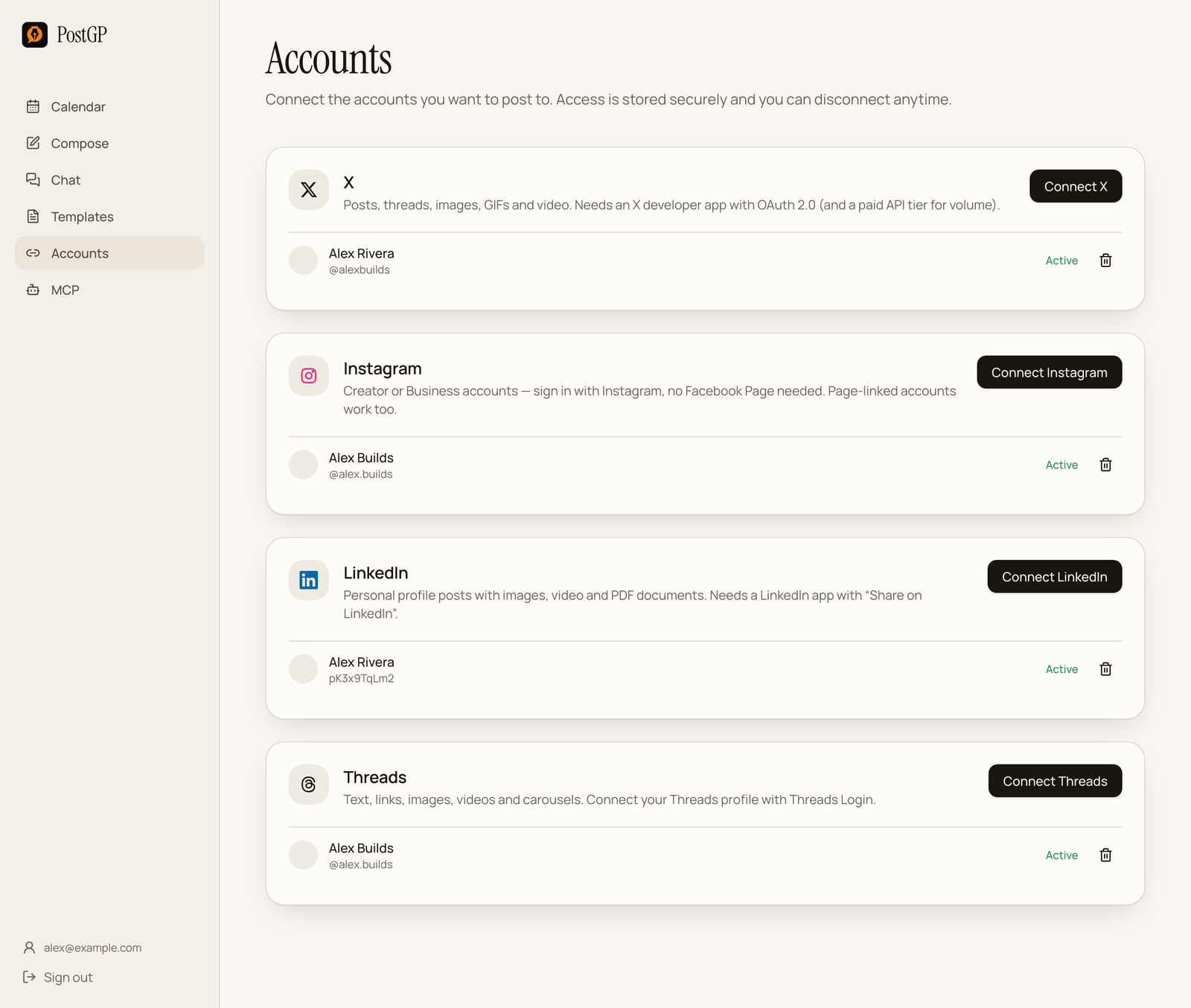
PostGP never asks for your password. When you press Connect, you are sent to the platform's own sign-in and approval screen, where you choose to grant permission. The platform then gives PostGP an access key that is limited to the permissions you approved. You can withdraw it at any time from either side.
What permissions are requested
PostGP requests the narrowest set of permissions it needs to publish. The exact wording of the approval screen belongs to each platform.
| Platform | Permissions requested | What they allow |
|---|---|---|
| X | tweet.read, tweet.write, users.read, media.write, offline.access | Read your profile, post and upload media on your behalf, and stay connected without signing in again. |
| openid, profile, w_member_social | Identify your profile and post to your own feed. | |
| Basic, content publish and comment management | Read your profile, publish posts, and add the first comment. | |
| Threads | threads_basic, threads_content_publish | Read your profile and publish posts. |
What PostGP cannot do
- It cannot see your password or your private messages.
- It cannot change your account settings or profile through these permissions.
- It cannot post to accounts you have not connected.
- It cannot ignore platform limits: posts that break a platform's rules are blocked or marked failed.
How your access is stored
Access keys are kept in a separate store that the app's user accounts cannot read. Your own session can see that an account is connected, its name and its status, but not the key itself. Publishing runs from a controlled background process rather than from your browser.
AI assistants connected through MCP sign in as you and use the same account-scoped access as the web app. They do not get a back door to other users' data.
How to disconnect
- Open Accounts in PostGP and press the bin icon next to an account. Its stored access key is deleted immediately.
- To be thorough, also remove PostGP in the platform's connected-apps settings. The data deletion page lists where to find that on each network.
- To remove everything, delete your account from the bottom of the sidebar. That erases connected accounts, posts and uploaded files.
Scheduled posts for a disconnected account will not publish, so reschedule or delete them first.
Questions to ask any scheduling tool
- Does it use the platform's official sign-in, or does it ask for your password?
- Which permissions does it request, and are they all needed?
- Where are access keys stored, and who can read them?
- Can you disconnect and delete your data yourself, without contacting anyone?
- Does it publish through the official API, which platforms treat as normal posting?
Frequently asked questions
- Can a scheduler get my account banned?
- Posting through a platform's official API with your permission is the sanctioned way to schedule. Spamming, bursts of posts and breaking platform rules are what cause trouble, and PostGP spaces posts at least four hours apart.
- Does PostGP see my password?
- No. You sign in on the platform's own page and only an access key is passed back.
- Does PostGP use my content to train AI models?
- No. See the privacy policy and the data deletion page for details.
- How do I revoke access completely?
- Disconnect the account in PostGP, then remove PostGP in the platform's connected apps settings.
Keep reading
Schedule your posts with PostGP
Plan Instagram, X, LinkedIn and Threads posts in one calendar.
Get started