
Platforms
How to Schedule Threads Posts: Built-in Scheduler vs a Scheduling Tool
November 5, 2026 · 6 min read
You can schedule a Threads post two ways: with the scheduler inside the Threads app, or with a tool that publishes through Threads' official API. They solve different problems. This guide compares them honestly, then walks through scheduling a Threads post in PostGP.
Two ways to schedule on Threads
The Threads app includes a way to schedule a post: write it, open the options menu, and choose a date and time. Sources describing it report that it arrived in early 2025. It is handy for a one-off post when you are already in the app. Check Meta's help centre for the current steps, because app menus change.
A scheduling tool connects to your account through the Threads API and publishes at the time you choose. The post looks identical to one published by hand. What changes is everything around it: planning, previewing and managing several platforms in one place.
What each approach is good at
| Need | Threads app | Scheduling tool such as PostGP |
|---|---|---|
| Schedule one post from your phone | Yes, quick and native. | Possible, but the app is faster for a single post. |
| Plan Threads next to X, LinkedIn and Instagram | No, Threads only. | Yes, one calendar for all four. |
| See every upcoming post at a glance | Limited to Threads. | Monthly calendar with drag-to-reschedule. |
| Write with AI in your voice | No. | Compose and Chat with voice templates. |
| Let Claude, Codex or Gemini schedule for you | No. | Yes, through PostGP's MCP server. |
| Preview exactly how the post looks | Basic. | Live Threads preview in the editor. |
If you only ever post on Threads and only occasionally need a scheduled post, the built-in scheduler is enough. A tool pays off when Threads is one of several platforms.
Schedule a Threads post in PostGP
Connect your Threads account once (see the connection guide), then:
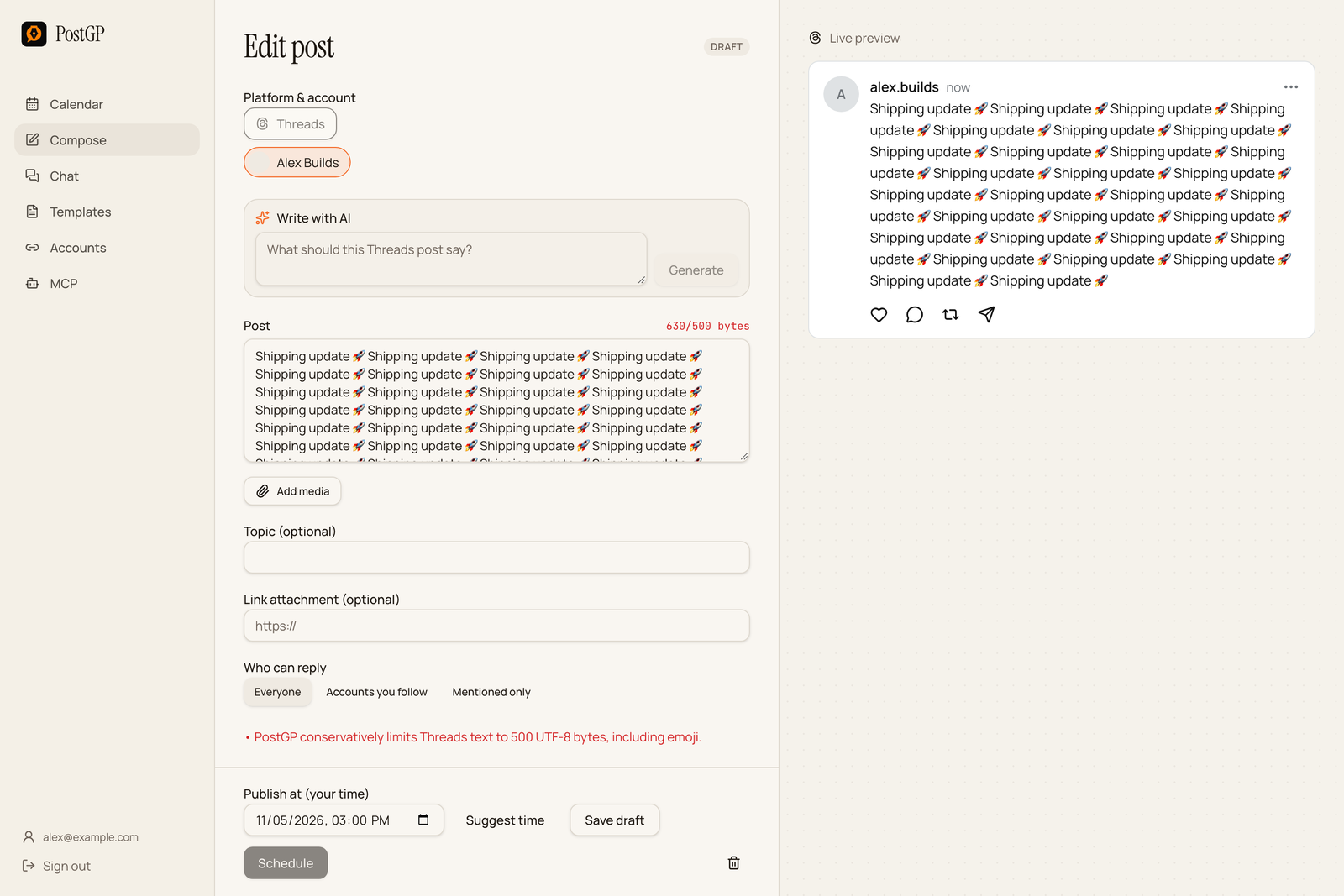
- Open Compose and choose Threads, then pick your connected account.
- Write the text. The counter shows bytes, because Threads counts UTF-8 bytes, not characters, against its 500 limit.
- Optionally add a topic tag, a link attachment, images or a video, and choose who can reply.
- Pick a time or press Suggest time, then press Schedule.
Threads features you can schedule
Scheduling through the API supports the parts of Threads that matter for planned content. For the full rules, including topic tag restrictions and link cards, see the Threads posting guide.
- Text posts up to 500 UTF-8 bytes, with up to 5 links.
- Image and video posts, and carousels of up to 20 items.
- A topic tag, which cannot contain periods, ampersands, semicolons or colons.
- A link card attached to a text-only post.
- Reply controls: everyone, accounts you follow, or mentioned only.
- Alt text on media, up to 1000 characters.
What to expect after you schedule
Posts with images or video take a little longer to publish than text, because Threads processes the media before it goes live. PostGP resumes that processing automatically and will not republish a post if the result is unclear, so you do not get duplicates.
If anything goes wrong, the post is marked failed with the reason, and you can fix it and retry. The troubleshooting guide lists the failure types.
Frequently asked questions
- Does a scheduled Threads post get less reach?
- Posts published through the official API are not labelled or treated differently from posts made by hand.
- Can I schedule Threads posts from my computer?
- Yes. PostGP works in the browser, so you can plan Threads posts from a desktop and let them publish on their own.
- Do I need a Facebook or Instagram account for Threads?
- You connect Threads with Threads Login. No Facebook Page is needed.
Keep reading
Schedule your posts with PostGP
Plan Instagram, X, LinkedIn and Threads posts in one calendar.
Get started