
AI assistants
Announce Your Release from the Terminal: Draft and Schedule Posts with Claude Code
November 6, 2026 · 7 min read
Shipping is the easy part. Writing the announcement afterwards is the step that gets skipped. If you already work in Claude Code, you can point it at your changelog and have it draft the posts and put them on your PostGP calendar, with you reviewing before anything goes out. This guide shows the setup and the workflow.
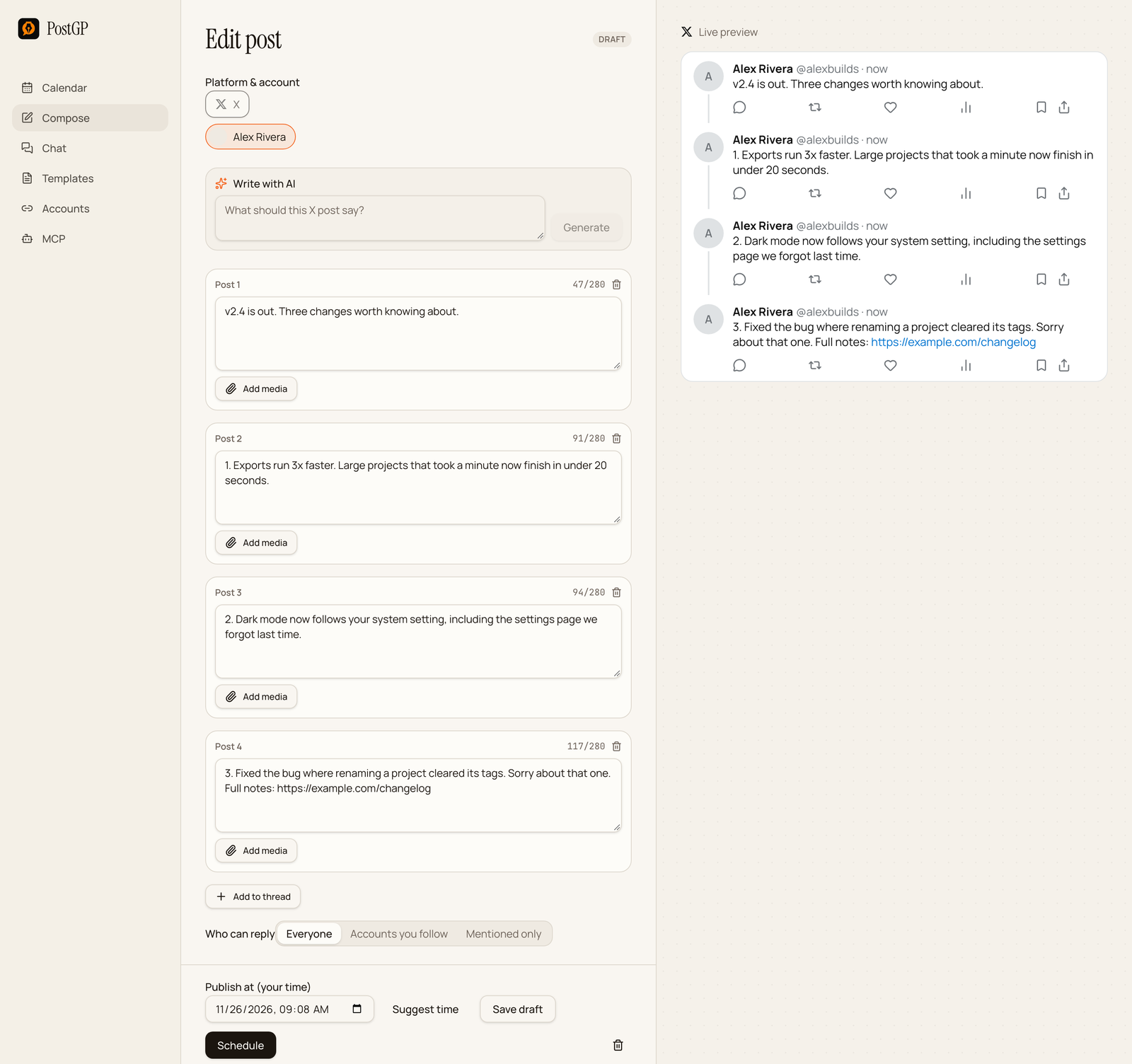
What this workflow does
Claude Code can read files in your repo and call tools. PostGP exposes its calendar as tools over MCP. Put the two together and one prompt can read your release notes, write a post per platform, and save them as drafts or scheduled posts in PostGP.
PostGP applies the same checks as the editor, so a post that breaks a limit comes back as an error that Claude can fix, rather than a failed publish later.
- Source: your CHANGELOG, release notes, or a git log range.
- Output: an X thread and a LinkedIn post, as drafts or scheduled.
- Control: you review them in PostGP before they publish.
Set up Claude Code with PostGP
You need a PostGP account with at least one connected social account, and Claude Code installed. Then add the server with one command.
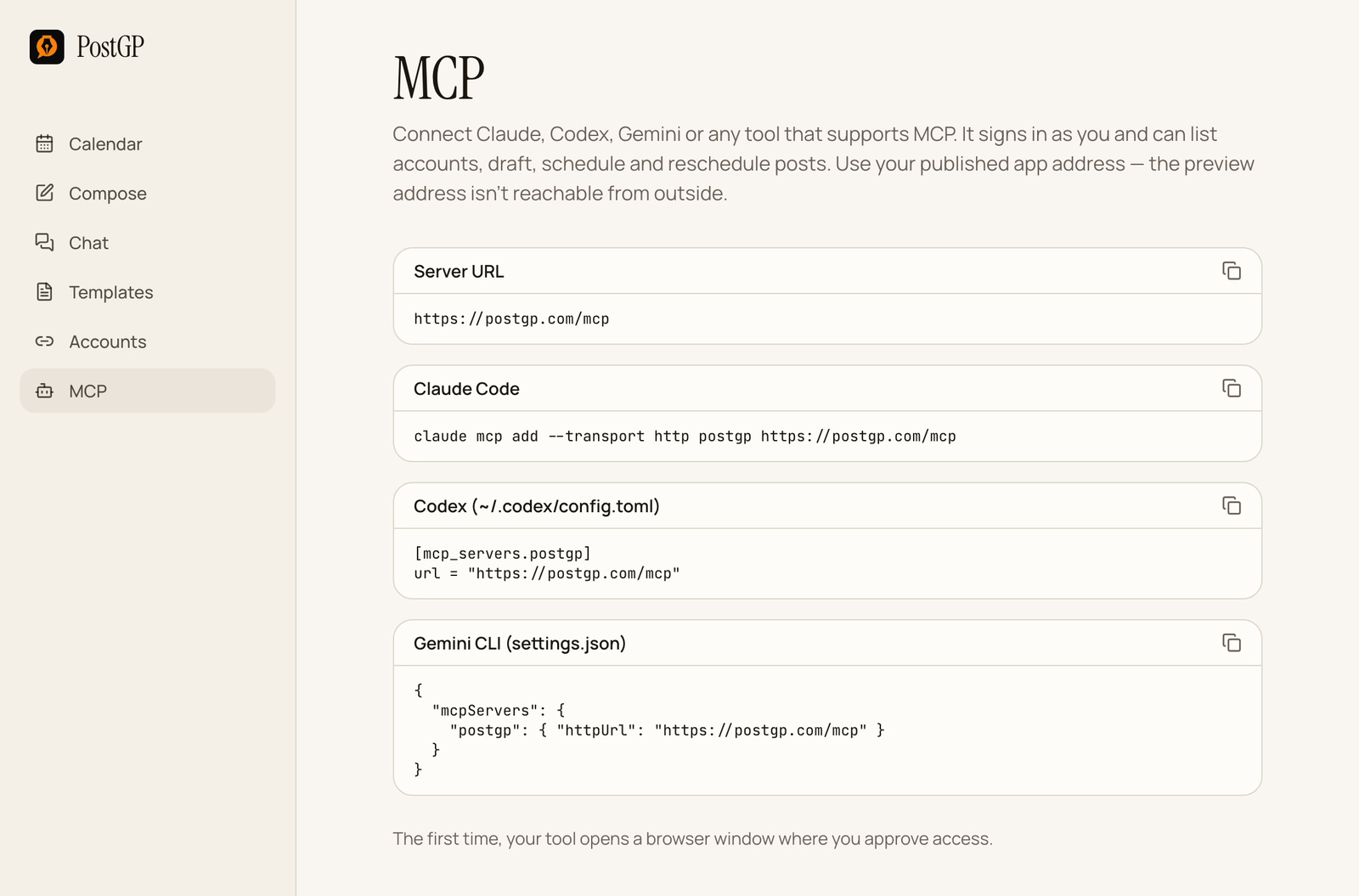
- Run the add command in your terminal.
- The first time Claude Code uses a PostGP tool, a browser window opens. Sign in to PostGP and approve access.
- Ask Claude Code to list your PostGP accounts. If it lists them, you are connected.
claude mcp add --transport http postgp https://postgp.com/mcp
claude mcp list
There is no API key to copy. Access is approved in the browser, and your social account tokens stay on PostGP's side.
The release-announcement prompt
Run Claude Code from the repo, so it can read your changelog. Ask for drafts first. That keeps the first run safe while you tune the wording.
Read the latest entry in CHANGELOG.md. Write an X thread of 3 to 5 posts and one LinkedIn post announcing it. Lead with the change users will care about most. Save both as drafts in PostGP. Don't schedule yet.
Review the drafts in PostGP
Open PostGP and look at each draft in the editor. The preview shows how the post will look, the counters show how close you are to the limit, and you can change any word by hand.
Check three things: the numbers and claims match your changelog, the first line of the LinkedIn post stands on its own, and the thread reads in order. If something is off, ask Claude Code to fix it, or edit it in PostGP. PostGP publishes the LinkedIn post itself and doesn't add a LinkedIn comment, so keep the link in the post text or add the comment by hand after it goes live.
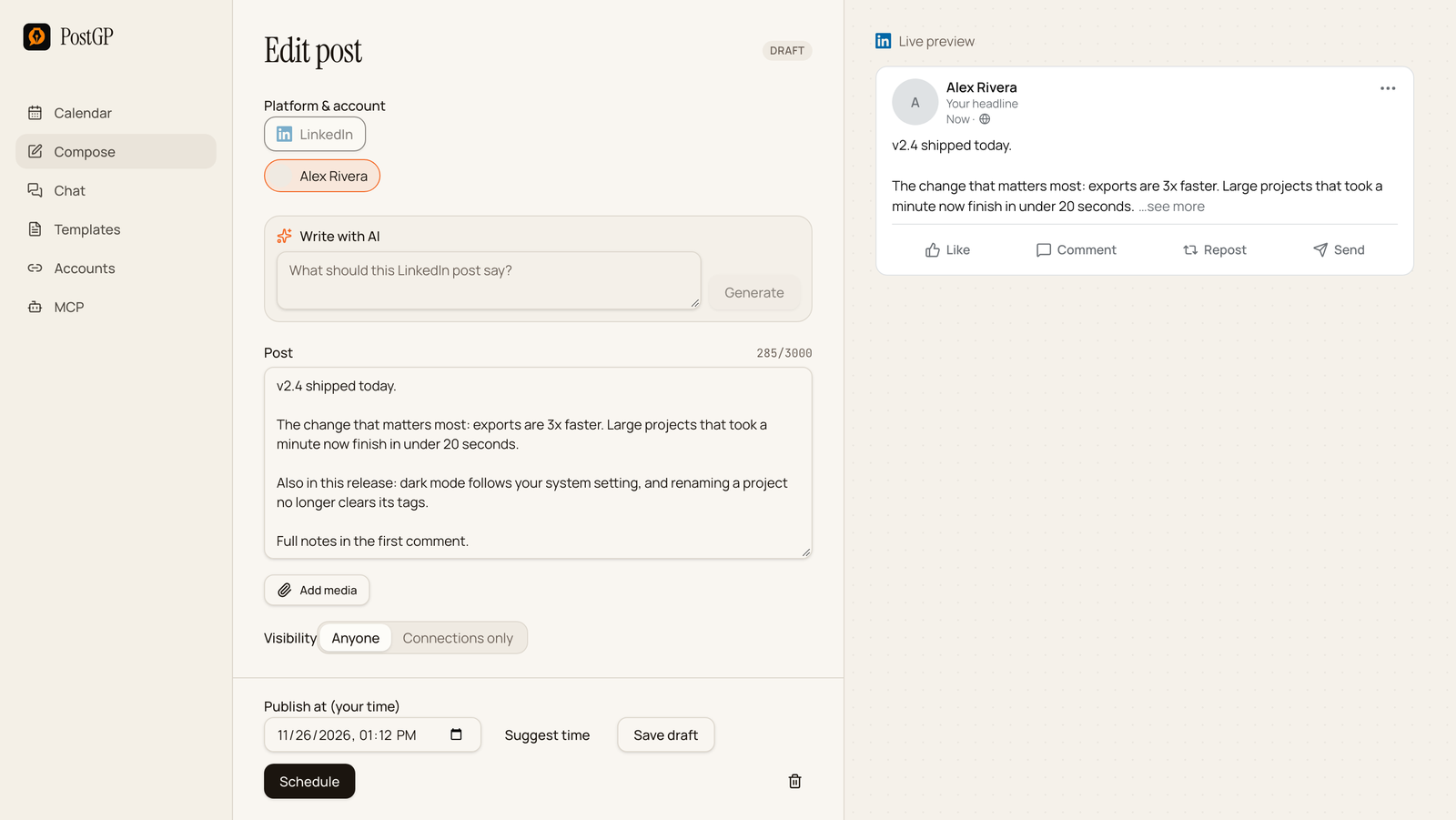
Schedule it
Once the drafts look right, ask for a time. Give a day, an hour and a time zone, because “Tuesday morning” is ambiguous.
Schedule the X thread for Tuesday at 9:00 am Pacific and the LinkedIn post for Tuesday at 1:00 pm Pacific.
PostGP allows at most one post every four hours per user, across all accounts. If Claude tries to stack posts closer than that, it is told to choose other times.
More prompts for developers
Run git log v2.3.0..v2.4.0 --oneline and pick the three changes a user would notice. Draft an X post and a LinkedIn post, saved as drafts.
My 1 pm LinkedIn post failed. Show me the error and retry it.
Show me what I have scheduled next week and suggest two days with nothing planned.
Keep control of what goes out
- Start with drafts. Move to scheduling only when the output is reliably good.
- Don't paste secrets, tokens or private customer details into the prompt or the changelog you ask it to read.
- Remember the assistant can create, reschedule, retry and delete posts. Review the calendar after a bulk request.
- Keep the source of truth in the changelog, so every claim in a post can be checked against it.
If it doesn't work
| Problem | Fix |
|---|---|
| Claude Code doesn't see PostGP | Run claude mcp list. If it's missing, run the add command again. |
| No browser window opened | Remove the server and add it again to restart sign-in. |
| It says no accounts | Connect at least one social account in PostGP first. |
| A post was rejected | Read the error. It names the limit or media rule, and Claude can usually fix it. |
| Two posts won't schedule together | They are under four hours apart. Choose different times. |
Frequently asked questions
- Do I need an API key to use PostGP with Claude Code?
- No. You approve access once in the browser when Claude Code first connects.
- Can Claude Code post straight away?
- It creates drafts and scheduled posts. The scheduler publishes at the chosen time.
- Which platforms can it post to?
- X, Instagram, LinkedIn and Threads, using the accounts you have connected in PostGP.
- Does Claude Code see my social media tokens?
- No. Tokens stay on PostGP's side and the assistant only uses PostGP's tools.
- Can I use another assistant instead?
- Yes. Claude, Codex, Gemini CLI and Cursor can also connect to the same server address.
Keep reading
- AI assistantsSchedule Social Media Posts with Claude, Codex or Gemini (MCP Setup)
- AI assistantsPrompts for Scheduling Social Posts with Claude, Codex or Gemini (Copy and Paste)
- PolicyIs It Safe to Connect Your Social Accounts to a Scheduler? What PostGP Can and Cannot Do
- PlatformsHow to Schedule Posts on X (Twitter): Step-by-Step, Including Threads
Schedule your posts with PostGP
Plan Instagram, X, LinkedIn and Threads posts in one calendar.
Get started