
Strategy
Instagram Caption Templates: 7 Structures to Copy, With Examples
November 6, 2026 · 7 min read
On Instagram the image gets attention and the caption decides what happens next. A template gives you a shape for that caption, so you aren't staring at an empty box. Each one below has a structure, an example and a note on where it goes wrong. At the end is how to schedule it with the right hashtags and first comment.
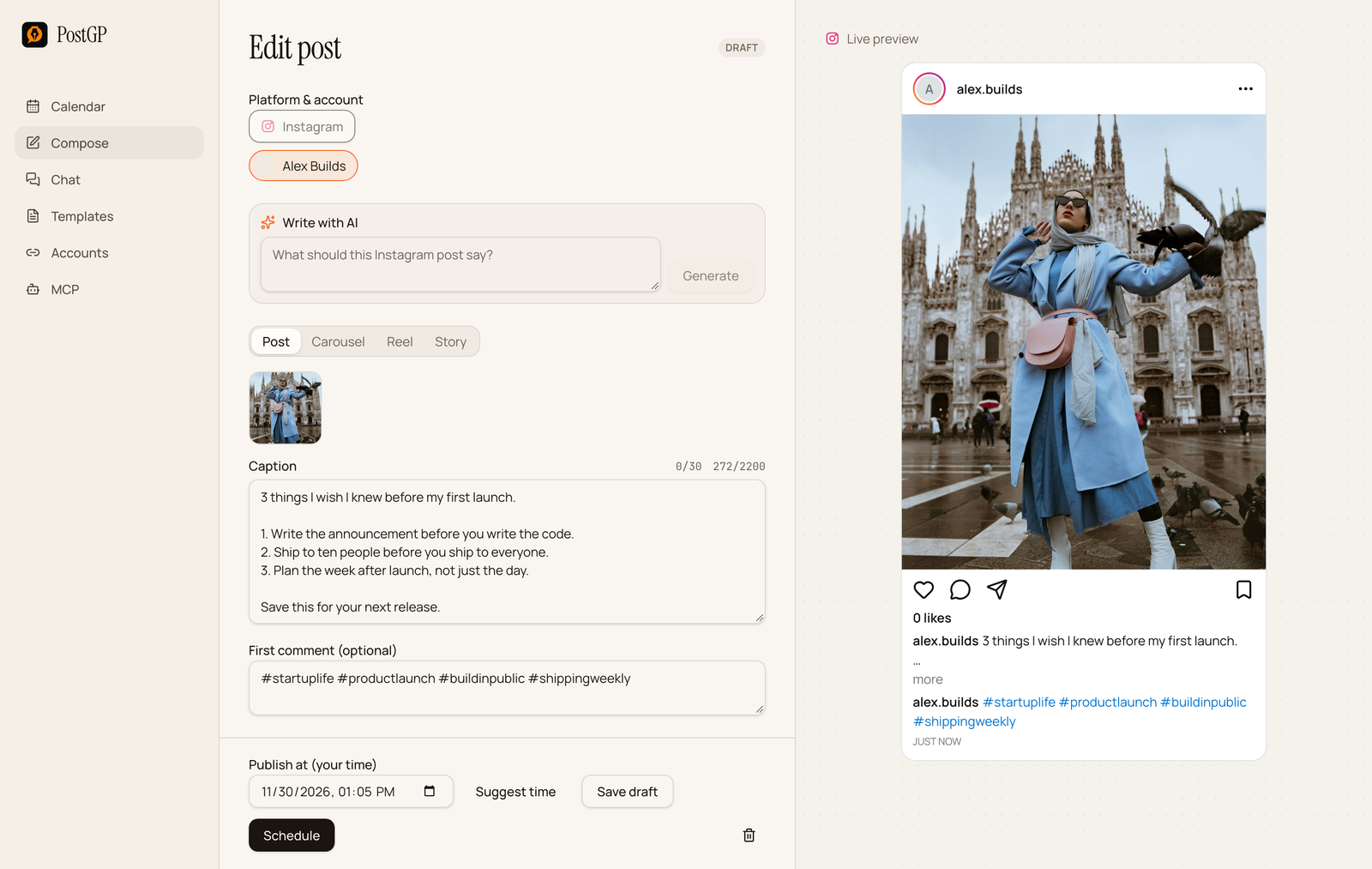
How a caption is read
In the feed, only the first line or two of a caption shows before “more”. PostGP's preview shows the same cut, as in the screenshot above. Everything a reader needs to decide whether to expand has to be in that first line, so each template starts with a line that works alone.
The limit is 2,200 characters and 30 hashtags, but most captions that work are far shorter. Use the space the idea needs.
1. The save-this list
Use it for tips, steps or lessons that people will want to come back to.
[N] things [audience] should know about [topic].

1. [Point, with a reason]
2. [Point, with a reason]
3. [Point, with a reason]

Save this for [when they will need it].

[One question].
3 things I wish I knew before my first launch.

1. Write the announcement before you write the code.
2. Ship to ten people before you ship to everyone.
3. Plan the week after launch, not just the day.

Save this for your next release.

Which one do you wish you had known?
Pair it with a carousel, where each point has its own slide and the caption repeats the list in short form.
2. Behind the scenes
Use it to show how work gets done. Keep it short, and let the image carry the scene.
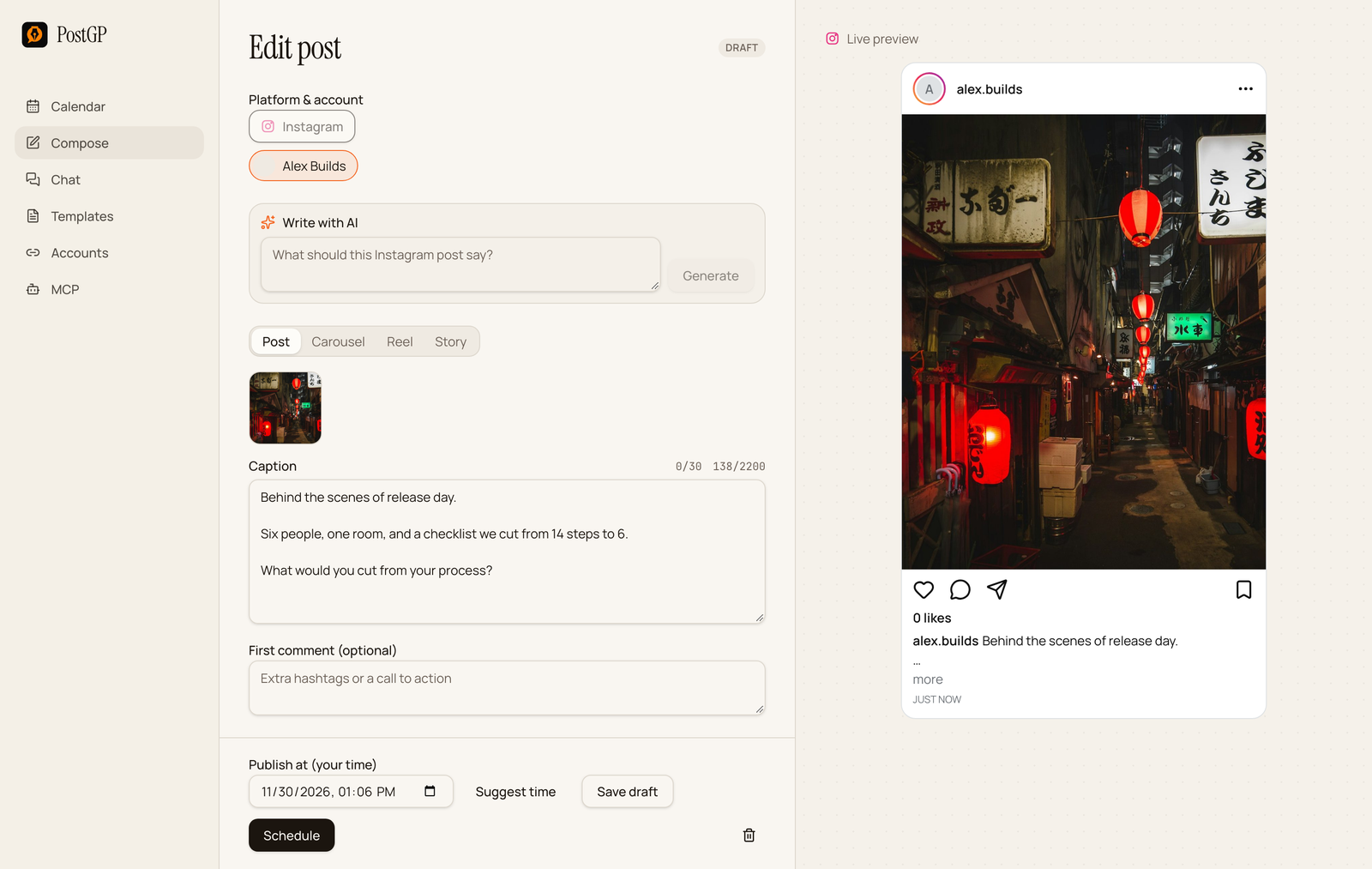
Behind the scenes of [event or process].

[One concrete detail about what's in the picture].

[Question that invites a reply]?
Behind the scenes of release day.

Six people, one room, and a checklist we cut from 14 steps to 6.

What would you cut from your process?
3. The story caption
Use it when the image prompts a story and you want people to read to the end.
[The moment, in one line].

[What was happening before].

[What changed].

[What you took from it].

[Call to action: comment, save or share].
This photo is from the day we nearly cancelled the launch.

Two days out, the export tool failed on every large file.

We cut three features, fixed the one that mattered and shipped.

The lesson: a smaller launch that works beats a bigger one that doesn't.

Have you ever cut scope at the last minute? Tell me below.
Use line breaks. A dense block of text is skipped, even when the story is good.
4. The launch caption
Use it for a product, feature or offer. Lead with what the reader gets.
[What is new], and it means [benefit].

What you get:
- [Feature 1]
- [Feature 2]
- [Feature 3]

[How to get it, e.g. link in bio].
Exports are now 3x faster, so big projects finish in under 20 seconds.

What you get:
- Faster exports
- Dark mode that follows your system
- Project tags that stay when you rename

Update to the latest version. Link in bio.
5. The customer story
Use it to share a result someone has agreed to be named for.
[Name] [achieved result] in [time].

The situation: [one line].
What they did: [one line].
The result: [number or outcome].

[Invitation or link in bio].
Nora cut her weekly posting time in half.

The situation: five platforms, one afternoon a week.
What she did: drafted everything in one sitting and scheduled it.
The result: Fridays back.

Want the same setup? Link in bio.
Get permission before naming a customer, and only share results they have confirmed.
6. The question caption
Use it when you want replies. A narrow question gets answers, and a broad one gets nothing.
[Narrow question]?

Mine: [your answer and a reason].

[What you'll do with the replies].
What is one step in your release process you'd delete tomorrow?

Mine: the sign-off meeting. It never changed a decision.

I'm rewriting our checklist this month and will share what I cut.
7. The Reel caption
Use it with a short video. The video does the work, so the caption only frames it.
[What the video shows, in one line].

[Why it matters, in one line].

[Single call to action].
Release day in 30 seconds.

Six people, one checklist, shipped before lunch.

Follow for the full checklist.
A Reel also has a switch for showing it in the main feed. See the guide on scheduling Reels for how it works.
Schedule the caption
- Open Compose, choose Instagram, then pick Post, Carousel or Reel.
- Add your image or video. Images must be JPEG.
- Paste the caption, then add the first comment if you use one.
- Check the two counters, hashtags out of 30 and characters out of 2,200, and read the preview.
- Choose a time and press Schedule.
Frequently asked questions
- How long should an Instagram caption be?
- The limit is 2,200 characters, but only the first line or two shows before more. Write what the idea needs and make the opening work alone.
- How many hashtags can I use?
- Up to 30. PostGP blocks scheduling above that.
- Can I put the hashtags in a comment?
- Yes. The First comment field is published right after the post goes live.
- Do Stories use captions?
- No. Stories don't display captions, so the caption fields don't apply.
- Can I schedule a caption in advance?
- Yes. Paste it into Compose, add your JPEG image or video, choose a time and press Schedule.
Keep reading
- PlatformsInstagram Captions, Hashtags and the First Comment: What to Write and Where to Put It
- PlatformsHow to Schedule Instagram Posts, Reels and Carousels (Step by Step)
- PlatformsPosting on Instagram: Feed Posts, Carousels, Reels and Stories Explained
- Strategy8 LinkedIn Post Templates You Can Copy, With Examples and the Fold Rule
Schedule your posts with PostGP
Plan Instagram, X, LinkedIn and Threads posts in one calendar.
Get started