
The social media MCP server for Claude, ChatGPT, Codex and Gemini
Let your AI assistant draft, schedule and manage posts for X, Instagram, LinkedIn and Threads. Add one URL, approve access once, and run your calendar by chatting. No API key.
https://postgp.com/mcp
How it works
- 01
Add the server URL
Paste https://postgp.com/mcp into your assistant's connector or MCP settings, or run one command in your terminal.
- 02
Approve once
Your assistant opens a browser window. You sign in to PostGP and approve access. No API key to create or paste.
- 03
Ask for what you want
Describe the posts and the times. The assistant drafts, schedules and manages them in your PostGP calendar.
Ask once, get a draft per network
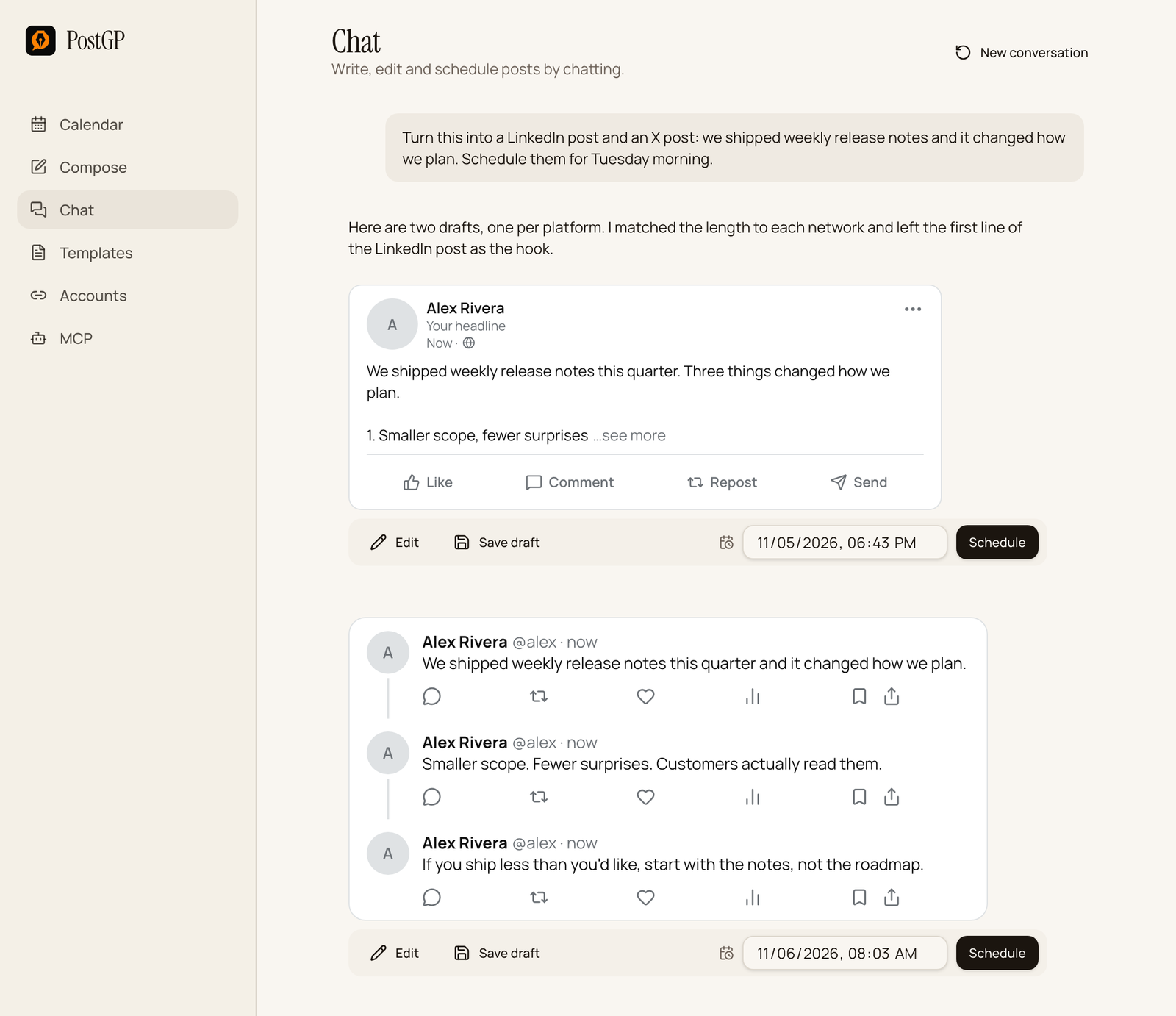
Describe the idea and when you want it out. The assistant writes a version for each platform, and every post appears in your PostGP calendar with a live preview, ready to check, edit or move.
You
Turn this into a LinkedIn post and an X thread, and schedule them for Tuesday morning.
The screenshot shows PostGP's built-in Chat. Assistants connected over MCP create the same posts in the same calendar.
What your assistant can do
Ten tools cover the whole life of a post, from the first draft to a retry.
| Tool | What it does |
|---|---|
| list_accounts | See which X, Instagram, LinkedIn and Threads accounts are connected. |
| create_post | Save a draft or schedule a post for one account, with the fields each platform needs. |
| upload_media_from_url | Fetch an image, video or PDF from a public https link (up to 50 MB) to attach to a post. |
| list_posts | Review scheduled and published posts in a date range. |
| list_drafts | See unscheduled drafts, newest first. |
| get_post | Open one post with its full content and status. |
| reschedule_post | Move a draft, scheduled or failed post to a new future time. |
| unschedule_post | Stop a scheduled post and send it back to drafts. |
| retry_post | Queue a failed post to publish again right away. |
| delete_post | Delete a post that is not publishing at that moment. |
Connect Claude, ChatGPT, Codex, Gemini or Cursor
Pick your assistant and copy the setup. The first time, a browser window opens so you can sign in and approve access. Any other assistant that supports remote MCP servers over HTTP works with the same URL.
Claude
Settings → Connectors → Add custom connector, then paste the URL.
https://postgp.com/mcp
Claude Code
Run this in your terminal.
claude mcp add --transport http postgp https://postgp.com/mcp
ChatGPT
Settings → Plugins → Add → Create custom MCP server.
https://postgp.com/mcp
Gemini CLI
Add to ~/.gemini/settings.json.
{
  "mcpServers": {
    "postgp": { "httpUrl": "https://postgp.com/mcp" }
  }
}
Codex
Add to ~/.codex/config.toml.
[mcp_servers.postgp]
url = "https://postgp.com/mcp"
Cursor
Add to ~/.cursor/mcp.json.
{
  "mcpServers": {
    "postgp": { "url": "https://postgp.com/mcp" }
  }
}
The same instructions are always in the app, on the MCP page of your PostGP account. For a step-by-step walkthrough, read the AI assistant setup guide.
Prompts to try
Include the platform, the time and a time zone, and say whether you want a draft or a scheduled post.
Schedule one post
Schedule this LinkedIn post for next Tuesday at 9:00 am Europe/London on my main account, and show me the text and time first:

"We shipped weekly release notes this quarter. Three things changed how we plan..."
One idea, every network
Turn this announcement into an X thread of up to 4 posts, a LinkedIn post and a Threads post. Save all three as drafts in PostGP.
Plan a week
List my PostGP accounts, then draft five posts for next week, one per weekday, rotating X, LinkedIn and Threads. Schedule them around 9:00 am my time, with at least four hours between any two.
Fix what failed
Find my failed PostGP posts, tell me why each one failed, and retry only the ones that failed for a temporary reason.
Why use PostGP as your social media MCP server
Sign in as you, no API key
Access is approved in your browser through OAuth. The assistant acts as your PostGP user and sees only your own data.
Four networks, one server
X, Instagram, LinkedIn and Threads, including Instagram without a Facebook Page and Threads media posts.
The rules still apply
Platform limits, media checks and the one-post-every-four-hours spacing are enforced for assistants exactly as in the app.
Review in a real calendar
Everything the assistant creates shows up in PostGP's calendar with true-to-life previews, so you can check, edit or move it.
Treat the assistant like a fast colleague, not an autopilot. Ask it to show the text and time before scheduling, keep drafts for anything sensitive, and check the PostGP calendar, which is the source of truth for what will publish.
Frequently asked questions
- What is a social media MCP server?
- MCP (Model Context Protocol) is an open standard that lets AI assistants use external tools. A social media MCP server gives an assistant tools to list your accounts, draft posts, schedule them and manage them, so you can run your posting by chatting.
- Which AI assistants work with PostGP?
- Any assistant that supports remote MCP servers over HTTP. PostGP provides setup for Claude, Claude Code, ChatGPT, Gemini CLI, Codex and Cursor.
- Which social networks can the assistant post to?
- X, Instagram (Creator and Business accounts), LinkedIn and Threads, using the accounts you have connected in PostGP.
- Do I need an API key?
- No. The first time you connect, your assistant opens a browser window where you sign in to PostGP and approve access.
- Can the assistant publish without my approval?
- It can create drafts or schedule posts for a future time, at least 30 seconds ahead. If you want a review step, ask it to save drafts or to show you the text and time before scheduling, and check the calendar afterwards.
- Can it get around platform limits or post too often?
- No. Character limits, media rules and the spacing rule of one post every four hours per user apply to posts created by assistants as well.
- Can I add images and video?
- Yes. The assistant can upload an image, video or PDF from a public https link, up to 50 MB, and attach it to a post, subject to each platform's own media limits.
- How do I revoke an assistant's access?
- Remove the connector in your assistant, and delete your PostGP account or disconnect individual social accounts from the Accounts page. The data deletion guide explains each option.
Keep reading
- AI assistantsSchedule Social Media Posts with Claude, Codex or Gemini (MCP Setup)
- AI assistantsPrompts for Scheduling Social Posts with Claude, Codex or Gemini (Copy and Paste)
- PolicyIs It Safe to Connect Your Social Accounts to a Scheduler? What PostGP Can and Cannot Do
- Using PostGPWrite Social Posts with AI That Sound Like You: Compose, Chat and Voice Templates
Run your social calendar from your AI assistant
Create your PostGP account, connect your networks and add the MCP URL.
Open the studio